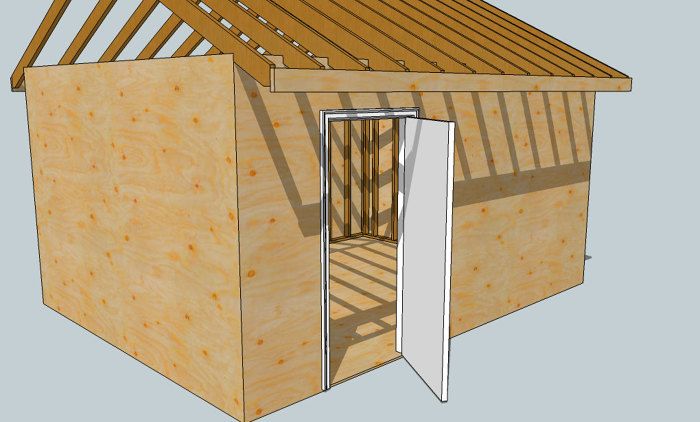
Strategery: Initial Steps for Component Modelling.
As with most projects, a bit of pre-planning “strategery” will make the overall project much easier to complete. I’ll attempt to demonstrate an “outline” approach that I’ve developed to simplify creating complex components with SketchUp. A pre-hung exterior door assembly is comprised of a number of individual parts; a door slab, the jamb, a sill and brickmould for starters. With the outline approach, I focus on a dimension that all these separate parts have in common, and in this case I chose the door size of 3′-0″ by 6′-8″ (36″ x 80″). Starting with a rectangle of that size, I use the offset tool to generate a rectangle, undersized by 1/8″ on all sides, and designate it as the door slab component. Saving the initial rectangle as the door jamb component and another instance of it for the brickmould component, I’ve created an “outline” for the entire assembly. Like in writing, an outline is first developed to highlight key parts of a subject and then each part is expanded to greater depth. I hope this description helps explain the steps shown in this first video clip where I draw and create the “outline” for a door component model.
Follow me, I’m lost too!
With the preliminary “outline” developed, this next clip shows using a “layout plane” method (as in previous videos) to add detail to the “door jamb” component. After the jamb shape is drawn, the “follow me” tool makes quick work of “milling” the rabbeted jamb as well as fitting and connecting the corners like a master carpenter
Brickmould is a Breeze
This last video demonstrates some ideas for adding realistic features to a SketchUp model in creating an ogee profile common on milled brickmoulding. Whether this level of detail is important to you or the purpose of your model is up to you (obviously) but it will surely add some whiz-bang effect to it. See what you think…
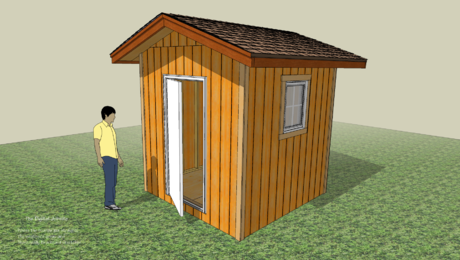
If you like, you can download the SketchUp file for this shed model here to help shorten the learning curve for 3D modelling…
Working Hard or Working Smart
Even though the “outline” approach to creating components simplifies the process, it still requires working hard and determination. In the next session of The Digital Jobsite I’ll present a “working smart” way for using components. Until then, I hope viewers have found this session at least a little helpful.
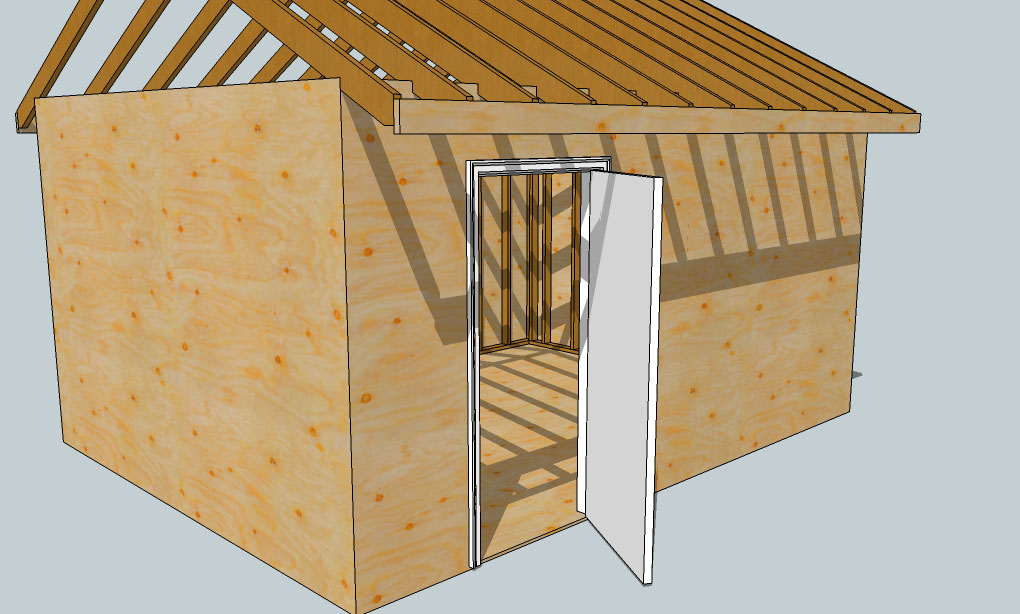
Organization is the key to building SketchUp models with lots of parts.









View Comments
Matt, you wonderful you!
This is good stuff! Missing from my understanding was the creation of a plane at the bottom of the door jamb. And, now that I think of it, you've used this idea in all of your models. Thanks, I finally got it!
I love tools. Now I'm the proud owner of a digital plane!
Thanks again buddy,
-CubeSquare