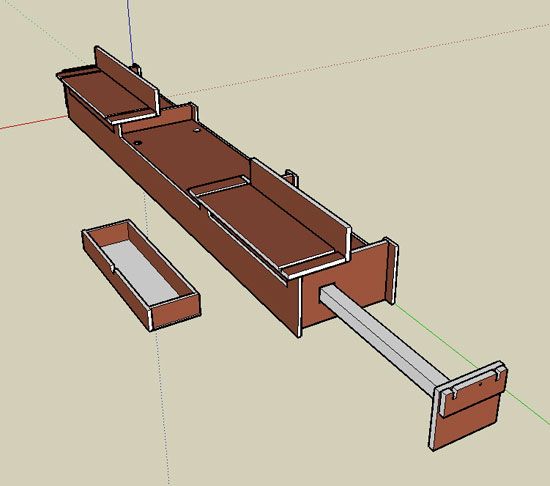
This all started when we launched our Ultimate Miter-Saw Stand Challenge last fall. Fine Homebuilding Magazine‘s editors wanted to see if they could find a perfect compromise between custom-but-cumbersome workshop cutting stations and the simple-but-nimble manufactured saw stands.
Several months and over 100 reader comments later, Senior Editor Justin Fink refined the design, built the stand, and presented the final project in a recent Fine Homebuilding article.
If you decide to built a custom stand of your own you will probably want to adapt the design to your specific needs. The Ultimate Miter-Stand Article is more about the great details and accessories that made the stand possible than it is about the specific size or materials it was built with. Among the details incorporated are sturdy outfeed support, compatibility with jigs, hold-downs, drawers, a power strip, and stops. read the article to find out more:
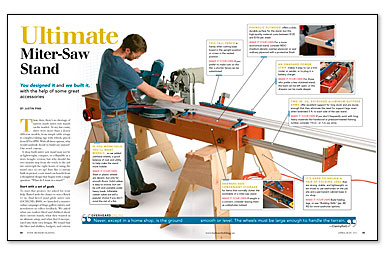

See the design in 3-D
If you’re considering building a stand for yourself, or you just want to disect our design, download the 3-D model here.
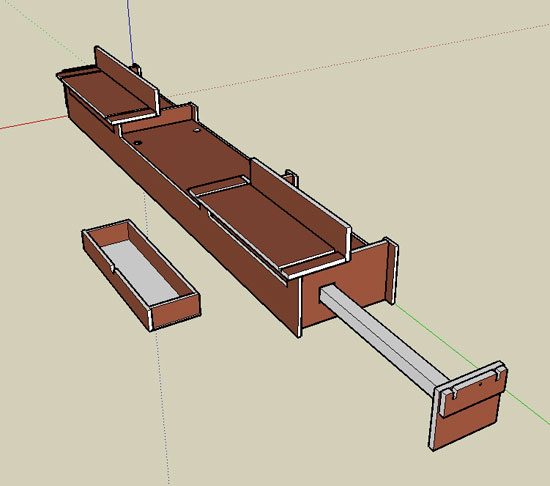
(if you have trouble downloading, just right-click on the
image, and then save the file to your desktop)
We used Google’s free SketchUp modeling program to design the stand; download the easy-to-use software here to view and edit the miter-saw stand drawing. If you have an old version of SketchUp, you may need to upgrade to the latest FREE version of the software.
If you’re new to Sketchup, stop by our Digital Jobsite Blog and watch some of our Sketchup video tutorials. There remodeler Matt Jackson demonstrates how to use 3-D modeling to design and plan everything from staircases, to tile floors, to entire workshops.
Share your own custom miter-saw stand
When you do get your own custom stand up and running, please share your unique take on this common workstation by posting some photos of your stand in our gallery.
Download the miter-saw stand SketchUp model here, but read on for more information about the project.















View Comments
For viewers unfamiliar with Google SketchUP:
To get a perfect view of the inner workings of the Ultimate Miter Saw Stand after you download the SketchUp model,click on the "X-Ray View" tool. This unique feature, combined with the Orbit tool allows you to see how the extension slides and drawers are configured to fit into the compact space inside the stand. The clever design might be just the motivation to build one of these for yourself.
Matt
aka The Timber Tailor
What type of file is it? I can't open it to download.
tennisball,
Its a .skp file. First download and install Google SketchUp by clicking the link above which will take you to:
http://sketchup.google.com/
Once the SketchUp is installed just click on the "download the 3D model here" link. It will open SketchUp and the 3D file. It may say "read only file" but it is a fully functional 3D model.
Hope that helps!
Matt
aka The Timber Tailor
How about a simple drawing with dimensions in PDF format for us old guys, who are your major supporters.
I have Sketchup version 7 but this model was done in version 8 which my all of 4 year old software doesn't support. A PDF or even.dwg or other architectural format would be appreciated by those of us unable to keep up with all the latest and greatest. A PDF would certainly be the most generally useful, even if the wow factor is somewhat diminished. Most of us who read this blog, notepad, discussion or whatever, are more than capable of visualizing the real world from drawings, it's what we do. I myself have used Sketchup for clients who have difficulty visualizing drawings, or how their remodel plan will look, but have then been frustrated by their lack of computer savvy or their outdated software. Such is the world in which we live. The lesson I've learned AGAIN, is keep it simple. Another avenue is to export your model as a slideshow from Sketchup as a video that can viewed by various common software such as W-Media Player or Quick Time Player. This will maintain some of the wow you worked so diligently to achieve. I myself would like to use (steal?) some of your ideas pertaining to both the saw stand and your modeling techniques.
Cheers: As hardheaded as ever
I'm confused. There's a nice isometric drawing of the Ultimate Miter Saw stand. But that's it. No comments, no notes, no nothing. Can we get a bit more info? Something to tell us about it's features and reasons for whatever it is that the design incorporates? That'd be nice. Thanks.
As a "young" carpenter & architect who works mainly in 3d programs, I have to agree with the "old guys." While most of my clients and builders appreciate the 3d experience there is little they can do with a 3d model like this. In fact, the illustrations in the article itself are much more handy that the 3d. If you provide a 3d model as the "Plan" for any kind of project, then it has to include ALL the necessary information. Thus, the extrusions and brackets should be shown (on separate layer), otherwise they look like they are just floating in there. All channels & knobs should be shown and be on a separate layer. There also should be copious amounts of notes and dimensions. This is all easy to do in 3d, even in a 2nd rate program like Sketchup. Once that very detailed model is complete, 2d drawings (Plans, sections & elevations) can be made from it automatically for the "old guys," and us youngsters will be giddy we can use the shop computer instead of wasting paper!
BTW: Nice design though!
I'll chime in on the side of the "old guys" as well. In order to view this I not only have to go to version 8 of SketchUp, but before I even do that, I have to go an buy myself a new computer. I run a Mac with OS-X 10.4
We all use tools that work on the jobs that we do. What is the problem with using an older tool to show what is going on here? A PDF would be something that is accessible by everyone, and Adobe makes reasonably sure that you can use there programs with older operating systems. It is a shame that new programs are not put together to allow the same amount of flexibility.
I used to work in the computer industry. There motto seems to be that change is progress. If you really think about it, that is not necessarily true. If it does not run better, and give you more flexibility without having you invest in new equipment that is not needed for anything else, then this is not progress.
What about it? Give the guys who know how to visualize things on there own, something a little simpler to work with!
The guys with the new toys are not necessarily those that do things better.
I don't mean to offend anyone. I'm just trying to bring things a little closer to what reality is.
Please do not misappropriate the term "Ultimate" for this m/s stand design. A clunky 8' behemoth, not really portable and not really shop stationary suitable. Who's kidding who? Looks more like this was just a amateur exercise in playing with SketchUp. Are we trying to be kool (sic) with some newer sftwr tools and not doing justice to either good product design or SketchUp??? Please, Fine Woodworking can and has done much better, even looking back 25 years.
I read the article and thought it was a clever design and thought the bench looked fairly functional and sturdy to have on a job site for a lengthy time. However, I am not going to waste my time "learning" a design software program in order to build the bench. It really is a joke to offer the design to readers in a 3-D design format and make them download a design program AND learn the program in order to get a working drawing. I downloaded the drawing and program and literally wasted an hour and still do not have a drawing I could read to build this bench. What happened to a 3 view drawing with dimensions? If most builders are like me, that is what we care about and NEED when we build stuff. I am not one to complain much about stuff but how about offering a drawing we can download, print, and take to our shop?
I am with everyone else here. That drawing is useless. I can't find the "X-Ray" tool even using the help function. I don't care about the specific dimensions of the project but could we find out what kind of material you are using, plywood, OSB, dimensional? And what, in a paragraph or two, makes your design the ultimate?
Peter
I was at first disappointed that only the sketchup model was given, but after a bit of digging, I realized that this is the best way to share designs. The main thing that is needed here is the "cutlist" plugin. It is available here: http://lumberjocks.com/daltxguy/blog/5143
(by woodworkers and for woodworkers). Once you install and run this plugin (you need to copy the downloaded files to Sketchup's Plugin directory), you can get a complete cutlist and layout from the model. Awesome! At the same time, you can rotate the model and see how everything goes together. This is the future.
Another point to make is that there is an article accompanying this model. The link is a little hidden above. (Look for the live "here.") It will take you here: https://www.finehomebuilding.com/tool-guide/article/ultimate-miter-saw-stand.aspx?ac=fp
Good Luck!
I apologize to all who were expecting a full set of plans, and I'm sorry it was not immediately obvious that the model was an additional feature of the Ultimate Miter-Saw Stand article linked to above. I've made the link to the article more prominent, and I've made sure the article is free to view by any of our readers.
If you stay tuned, Matt Jackson plans to post a free tutorial in our Digital Job Site blog about working with dimensions and plan views in SketchUp models. Once his tutorial is complete, I'll be uploading a new version of the model with dimensions and with simple buttons that will allow you to toggle through different views of the stand.
Rob Wotzak
Web Producer
In support of sketchup, I find this tool very useful and appreciate you including the sketchup model. I understand that the tool takes quite a bit to learn and most people would prefer a cut list, but I for one really like sketchup models to be included. I lets me see all the details as well as modify the model and see the results.
From the comments posted I think the main issue is that the Sketchup model is not a stand-alone item, but a supplement to the article.
.
As far as the usefulness of Sketchup as a tool, I think it's great. I've designed carrying cases for some of my model train equipment, an 8-foot-tall model of a railroad signal bridge, and the cap for my pickup truck.
.
While I agree that learning a new tool is not for the faint-hearted, and unless you're running an older version of Sketchup your PC needs to be running a fairly recent operating system, using Sketchup is a great help in seeing how things fit together.
.
My pickup truck cap was designed in panels-- two sides, front, roof, and doors. This lets me assemble/disassemble the cap without the aid of 3 men and a boy. Sketchup let me see how the panels would come together-- what parts of the skin would overlap, for example.
.
I'm running the free version, and you have to keep track of your own cut list, but being able to group pieces into a sub-assembly and duplicate that sub-assembly (think windows and doors, complete with frames) makes assembling a complicated object a lot easier!
.
--Paul E Musselman
It would seem to me that an item that is being used as both a learning tool and possible building plan that more consideration wold be given to pre-version 8 SketchUp users.
My computer is older and runs version 7 adequately, but is not capable of running version 8.
so please make version 7 models available for tutorials at least
How much extra would it have been for Fine Homebuilding to have provided a cut list for what appears to be a well thought out miter saw stand?
Frustrating.
I'm not sure why the drawings aren't better ,so we can actually build the bench? , after reading the article I was expecting to be able to download a plan and cutlist like in yrs past.Sketchup can save files readable in other versions,
ie . goto save as....dropdown list... choose version needed. so I am not sure why the author hasn't supplied other versions of the file so people arent forced to download programs ( even if they are free) unless it is using options only available in version 8?. Would be nice to see the author update this post
The link to the SketchUp download no longer works. Can you please update the link to the correct location? Thanks
The link to download the SketchUp file (https://www.finehomebuilding.com/CMS/uploadedimages/Images/Homebuilding/HTML-blog-hosting/miter-saw-stand.skp) is no longer active. Can you please fix the link so others can download it?
Thanks