The Best Drawn Plans…
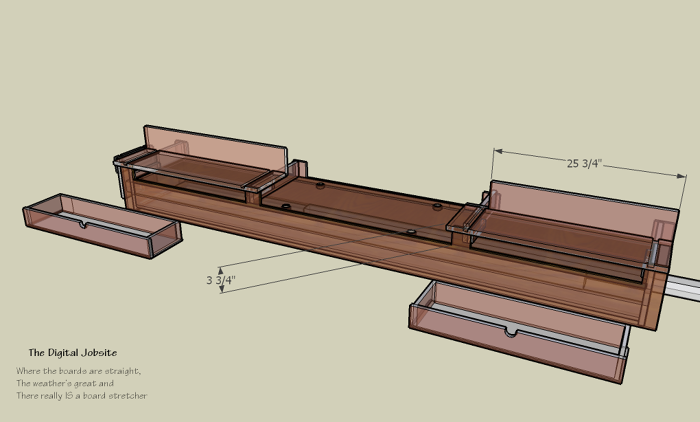
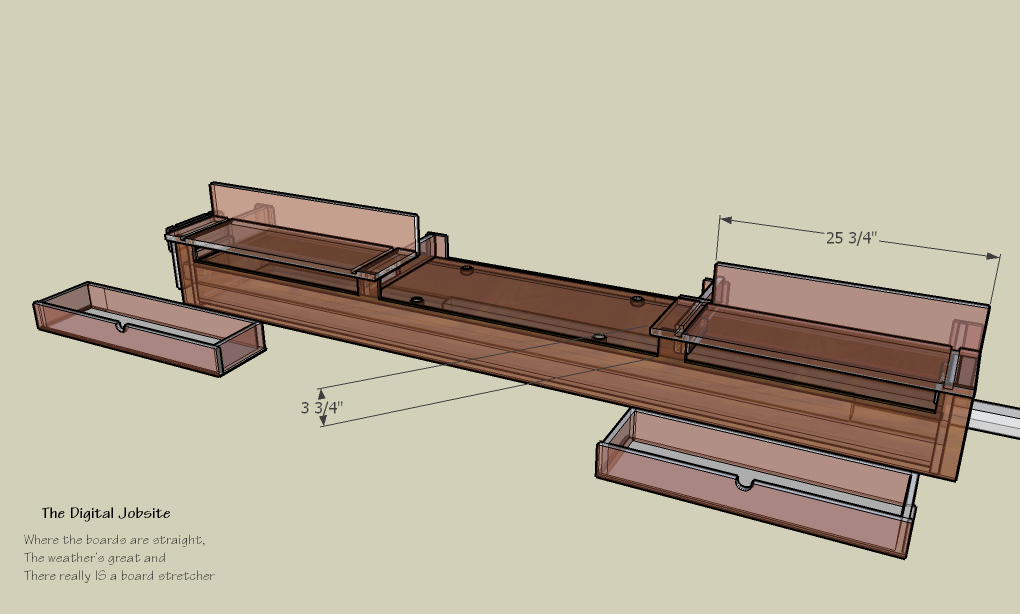
Typically, working out a project design can be a cumbersome process. For traditional models, making changes can cause cardboard and duct tape waste to pile up. With plans drawn on paper, the more complex the design, the bigger the mounds of scrap paper and eraser crumbs. For a digital model, the flotsam and jetsam from revisions is limited to bits and bytes in the recycle bin. An advantage to be sure if no others. Even if you don’t use Sketchup to draw your final blueprints, creating a 3D model with it is a great way to work the bugs out of a design so you don’t make kindling out of costly materials.
Cheat Sheet for SketchUp Users.
Any new iPod, cell phone, Blu-Ray player or other electronic device comes with a “Quick Start Guide”. Its usually a page or two that gets you using the thing enough to get by. I’m guessing its a marketing ploy that keeps people from returning or trashing the device out of initial frustration that trying to read an entire user’s manual would create. In many ways, using SketchUp to view a 3D model for the first time is a similar process, so I whipped up these two videos in an attempt to help folks get over the initial hurdles confronted in exploring a digital model using the Ultimate Miter-Saw Model as an example.
Quick Start Guide Page One: Viewing a 3D Model
The first “page” of this video quick-start guide shows some very basic yet useful mouse operations for viewing a 3-D model. These operations, combined with a few of SketchUp’s other presentation features, will give newcomers a glimpse into what this new technology has to offer.
Quick Start Guide Page Two: Model Manipulation
Well, if you’re still with me, here’s a few more things you can do to explore the design and construction of Justin’s compilation of reader’s suggestions for the design of the Ultimate Miter-Saw Stand. The “Move” tool allows all manner of options for operating various parts of the model. Check this out, its not all that tough:
The Complete, In Depth, User’s Manual for SketchUp in Seventeen Foreign Language Translations…
… is not included here. Fortunately, such a guide is available. For anyone interested in learning more than these basics for using SketchUp to view 3D models or create them from scratch, there is a vast and growing library of help topics online at Google SketchUp Help Center as well as a full range of entry level video tutorials here: Aidan Chopra YouTube Video Tutorials. And for insight into using SketchUp to plan, design and calculate projects related to carpentry, millwork and Fine Homebuilding, be sure to visit The Digital Jobsite where diverse new applications are covered on a (relatively) regular basis.
Fine Homebuilding Recommended Products
Fine Homebuilding receives a commission for items purchased through links on this site, including Amazon Associates and other affiliate advertising programs.

Affordable IR Camera
Reliable Crimp Connectors
8067 All-Weather Flashing Tape
X-Ray Specs (as in SPECificationS)
















View Comments
I doubt any of the SU/CAD gripers from the Ultimate Saw Stand blogpost will even chime in here.
It is so sad to me to hear Sketchup related comments like "I tried it for an hour but couldn't figure it out so I quit." What??? Remember "trying" drawing to scale with pencil and paper for the first time... was it more than an hour to "figure it out"?
I remember my first try of Sketchup. I spent my first hour watching the online video tutorial. My second hour was spent designing a make-believe workbench. From there on it was fun; Fun enough that I played around with it for hours and got very good (and super fast) at it. Then when I actually NEEDED it to design a building model, I already had the skill to use it. In comparison, it took me nearly 2 years (and two semesters of college classes) and lots of bumbling around in AutoCad before I could use it efficiently to design building models.
So my top 3 Sketchup tips are:
1.) Watch the online tutorials - either the ones here or the official ones at the Sketchup website. At the very least watch the first one but don't hesitate to watch them all incrementally. I've been using Sketchup for nearly 10 years and I still check out a tutorial now and again just to make sure I am working at the maximum of efficiency.
2.) Don't wait till you need it to try it. I know that nobody ever has "free time" to just play around with a computer program. Sure you don't... that's why you're reading a blog right now. Rearrange your schedule to devote an hour or two every week towards learning it. Don't think you will pick it up in the first hour and especially don't make your first drawing an entire house. Start with a box, then try a simple table, then maybe a cabinet... draw incrementally complex objects that don't really matter before moving on to draw something that does matter.
3.) Get a mouse! Specifically get a mouse with a center wheel button. With the new prevalence of laptops, I have seen many people who no longer use a mouse, settling with the navpad. In 2D drawing (plan views only) you might get away with that. But Sketchup is 3D and requires much more onscreen movement. Its like comparing paper and pencil drawing where the paper is taped down to model house building - it would be darn hard to build a model if it was taped down and you couldn't move around it.
4.) I know I said 'top three tips' so heres a bonus that doesn't apply to everyone: Get a new computer! If you're complaining about how slow programs are on your computer - or how slow the program downloads for that matter - then chances are your computer is an outdated pile of junk. 3D drawing requires more processing power than old computers may be able to provide. Upgrading to a new computer - possibly one designed for 3D drawing will save you lots of time and aggravation. What's that, you can't afford a new computer? Imagine you are on a job and your miter saw breaks or your work truck blows a rod - you gotta get that fixed or replaced to stay in business. Same with computers. Believe it or not, that computer is a TOOL for carpentry and could be reflected on your taxes as such... same for high speed internet (check with your accountant).
I know all you paper&pencil fogies probably don't care and won't give it a chance. But to anyone interested in truly improving the efficiency of their homebuilding techniques, be sure to try out Sketchup and keep these tips in mind.
DC
Dreamcatcher is right on. As a Disabled Veteran with only the right side of my brain, I am living proof that itis the way to learn Sketchup. Have only been using for three or four years, but have gotton almost good at it. If you are old enough to remember slide rules then Sketchup will be easy. Never did fully learn all the things a slide rule would & could do. I tell every one how easy it is to learn Sketchup & it is hard to beat the price.
I fiddle with homebuilding, wood working and a jillion other fun things to do. I love Sketchup - if you take a look at what you can do with 3D modeling (e.g. the miter table in this blog), you will never want to go back to 2D of any form.
Now comes the question - is it easy to learn. My reply is: No (at least for me). BUT the rewards are just too great to ignore (again IMHO) so I have just kept banging away at it. I went through the video tutorials, bought a book (Sketchup for Dummies - Not great in my opinion) and just kept trying new things with it. The one study aid I would definitely recommend is the ebook from Fine Woodworking on Sketchup. Only $12.95 - buy it, download it and go through it - you will learn a ton.
Bottom line - fantastic program and (as someone else commented) you can't beat the price. You can do it but it certainly took me more than a couple of days to become moderately proficient.
I find that the SketchUp keyboard shortcuts site - http://sketchupshortcuts.com/ - is a very helpful place to go when you're getting started.